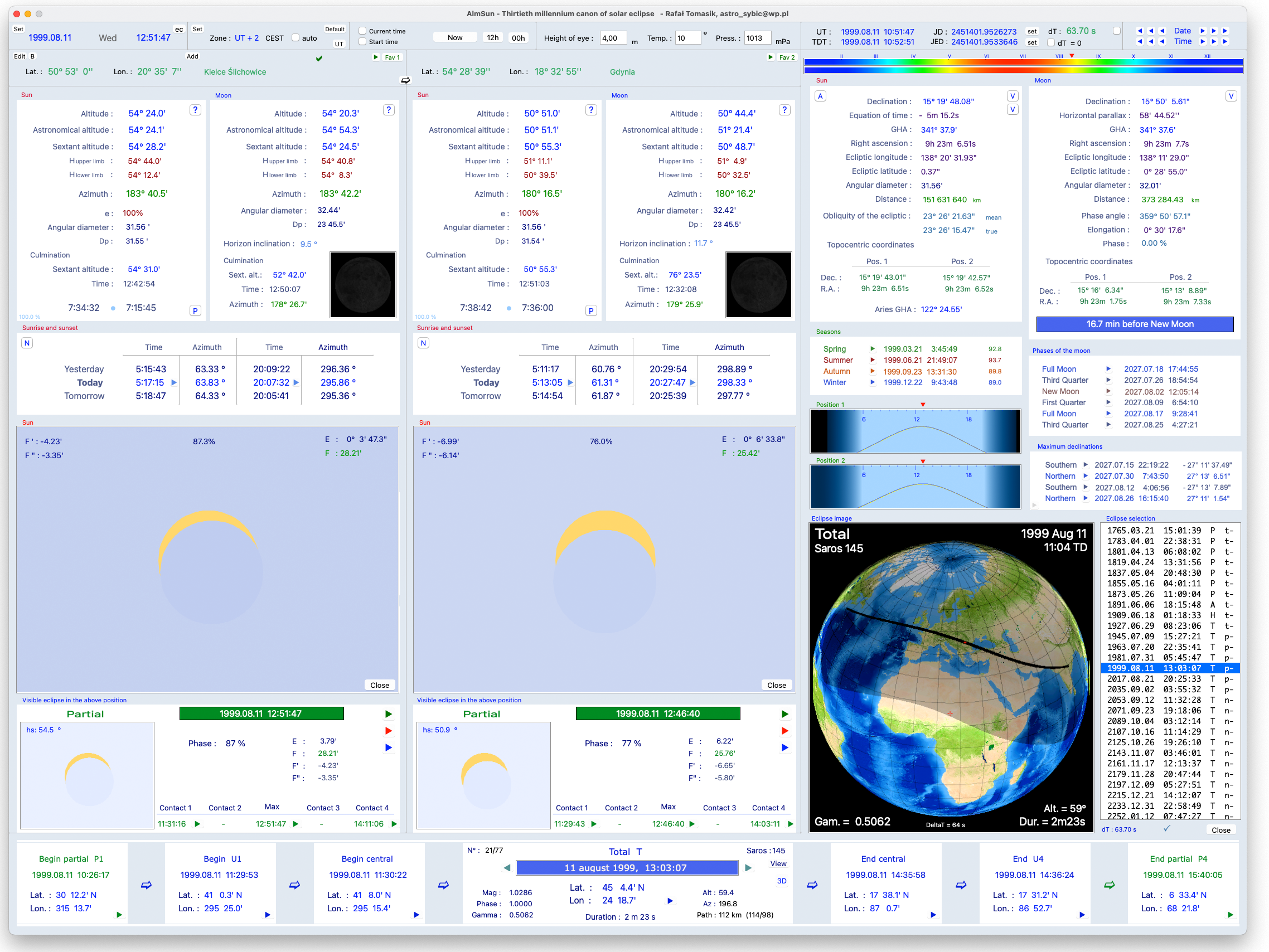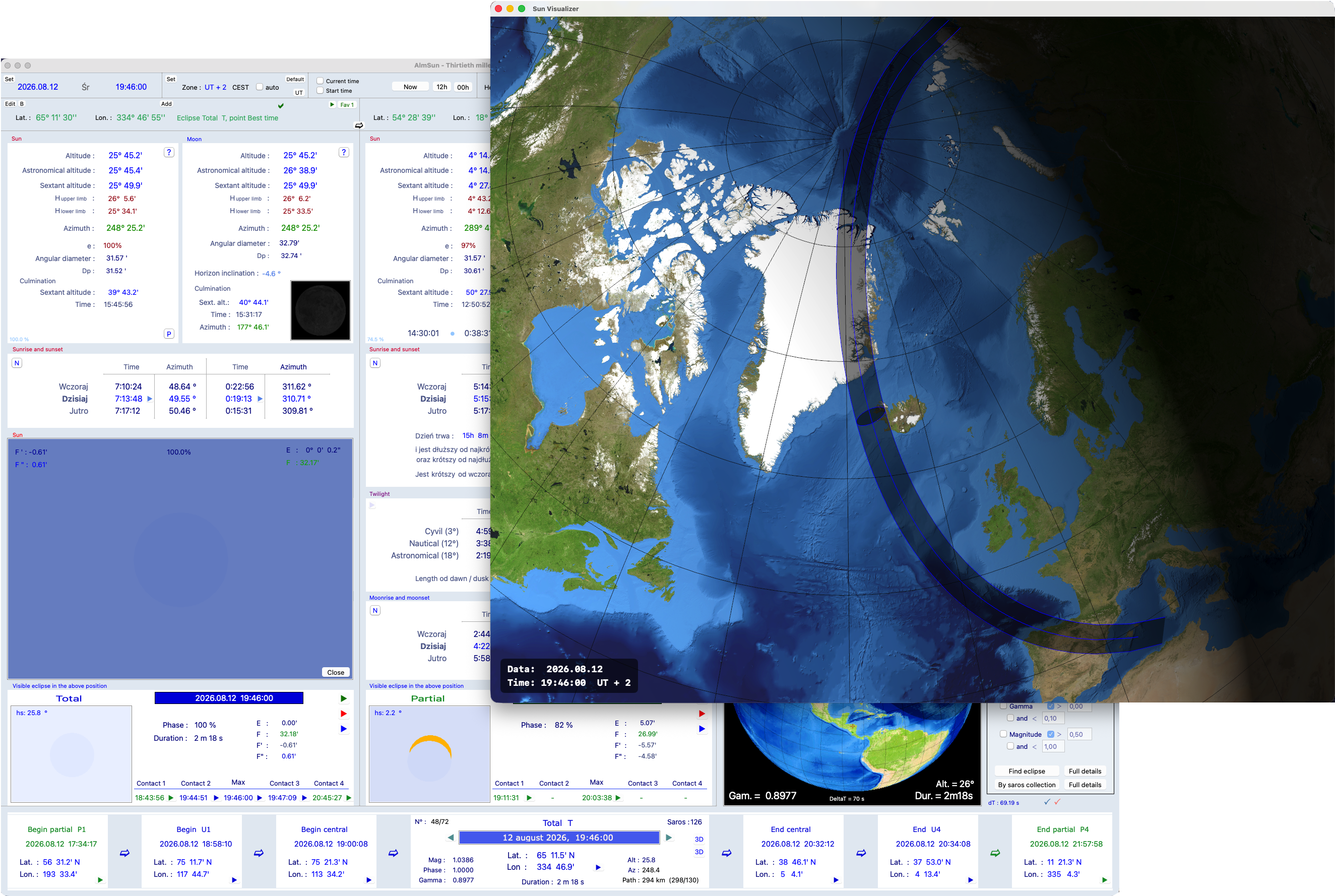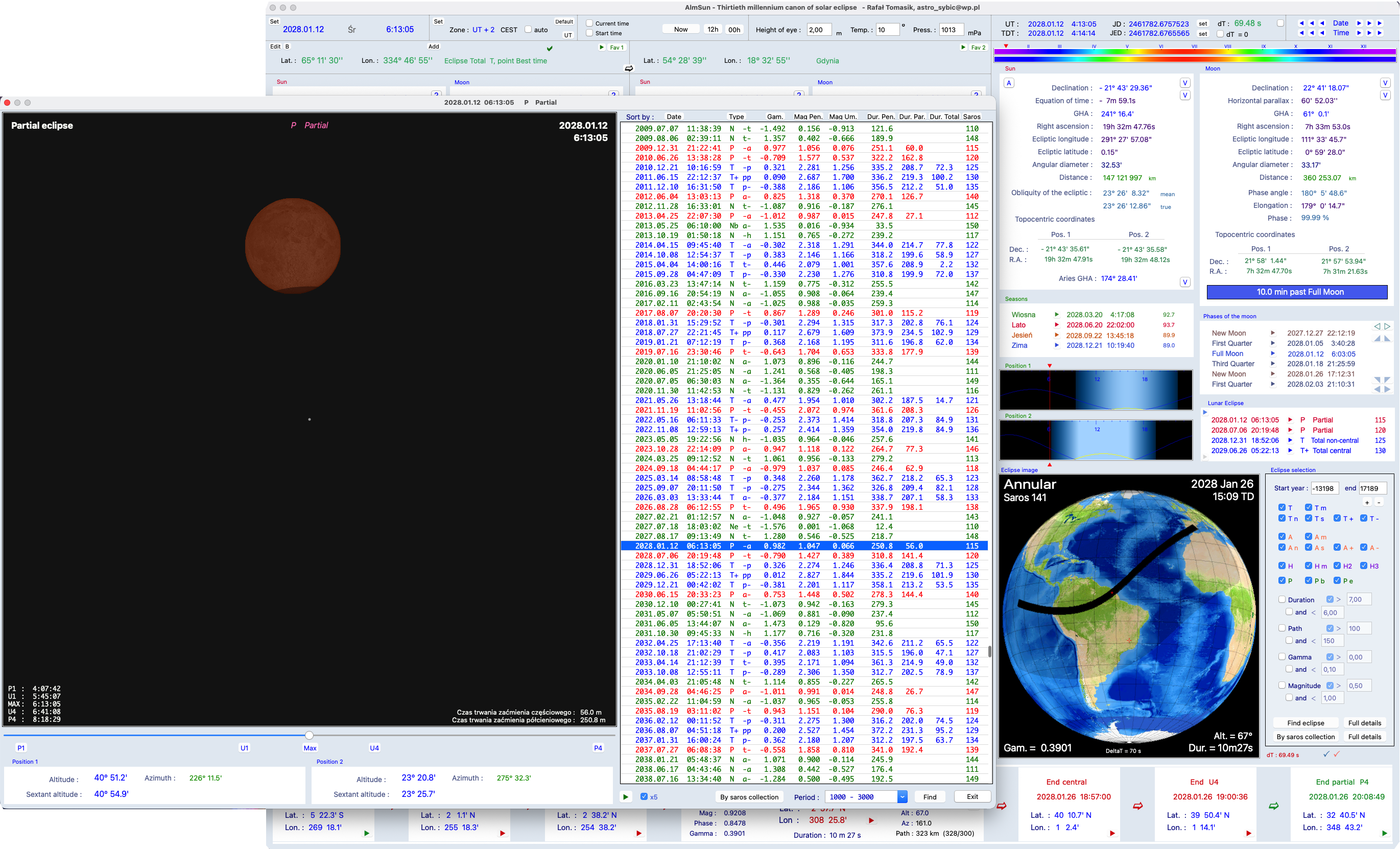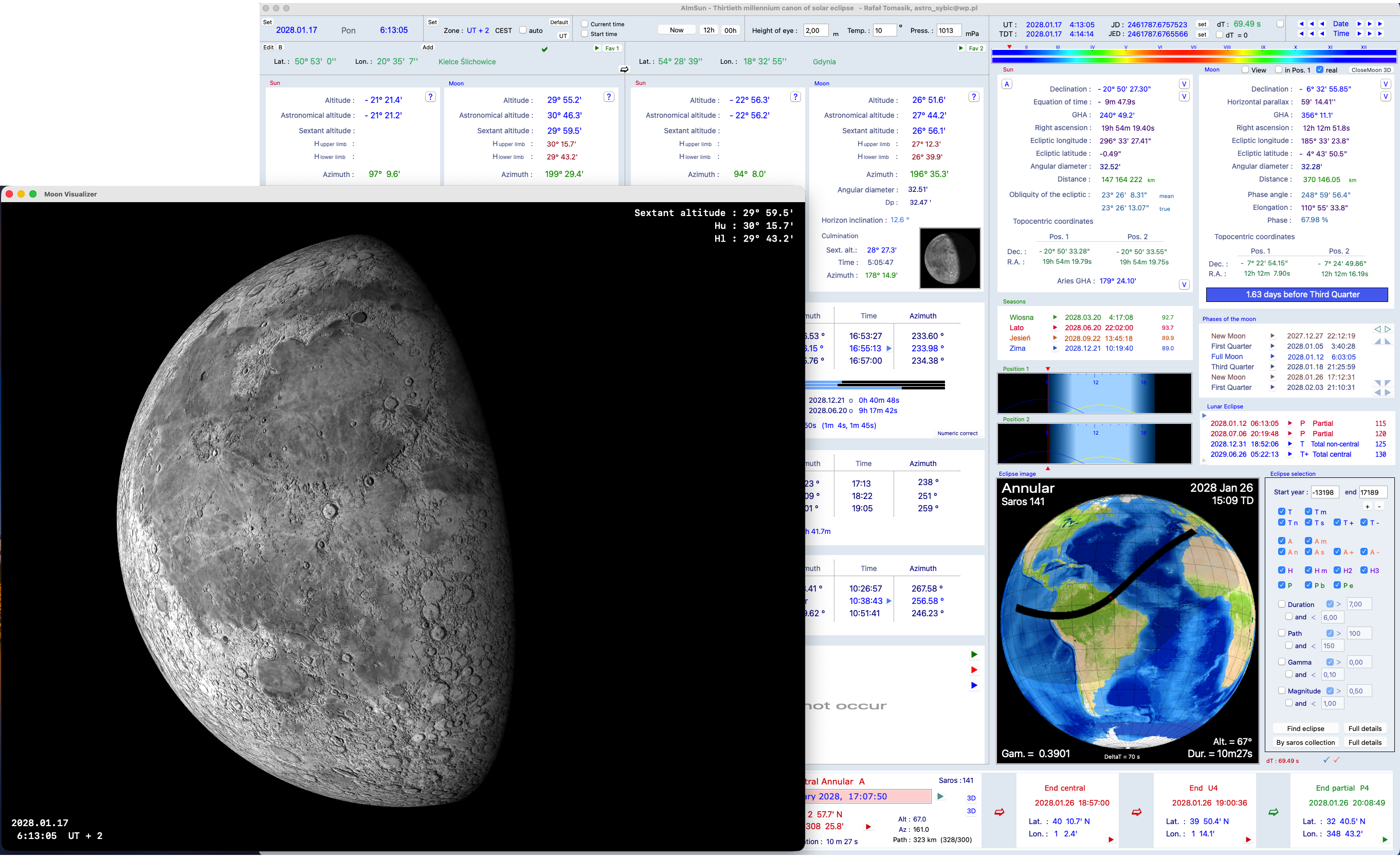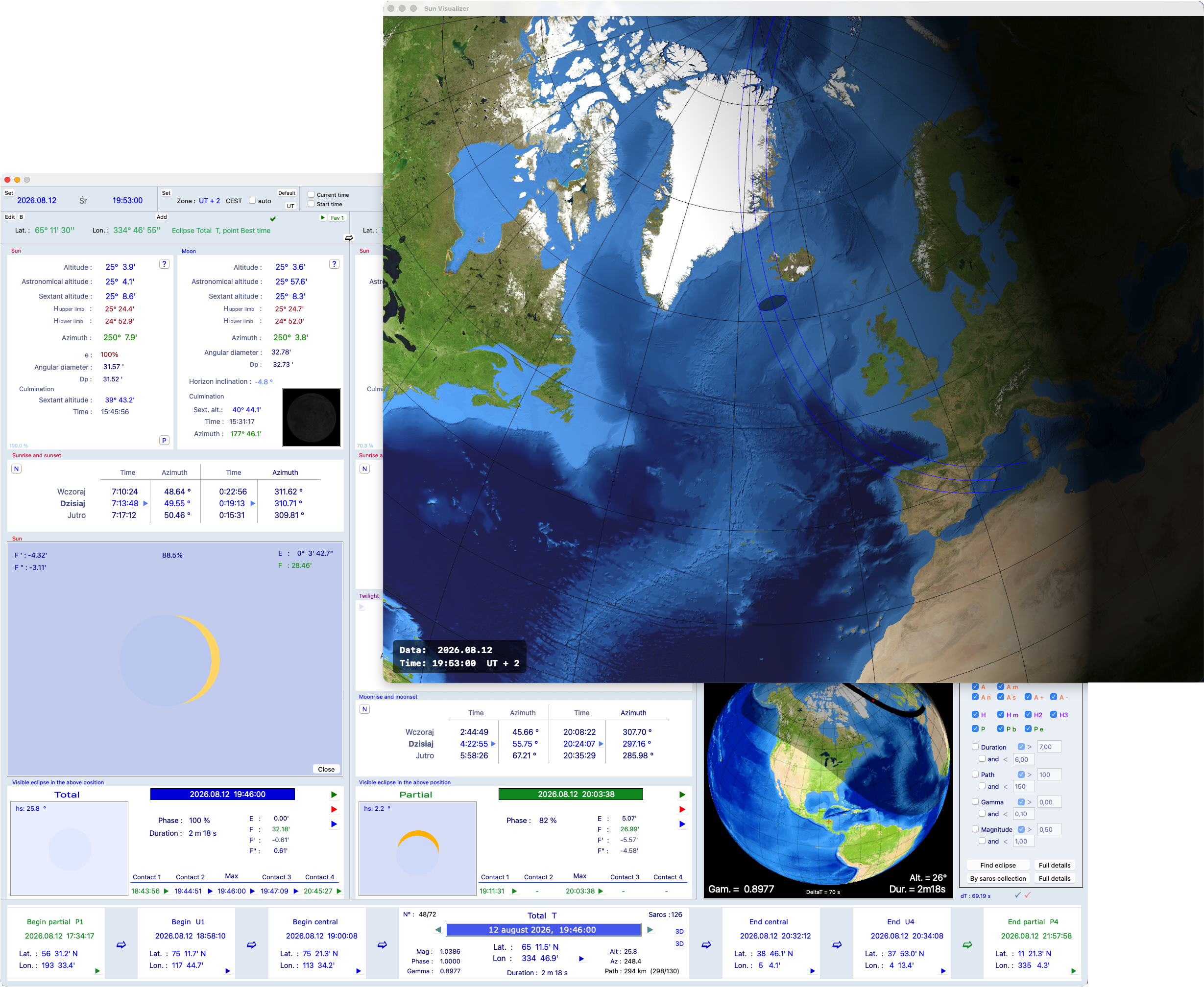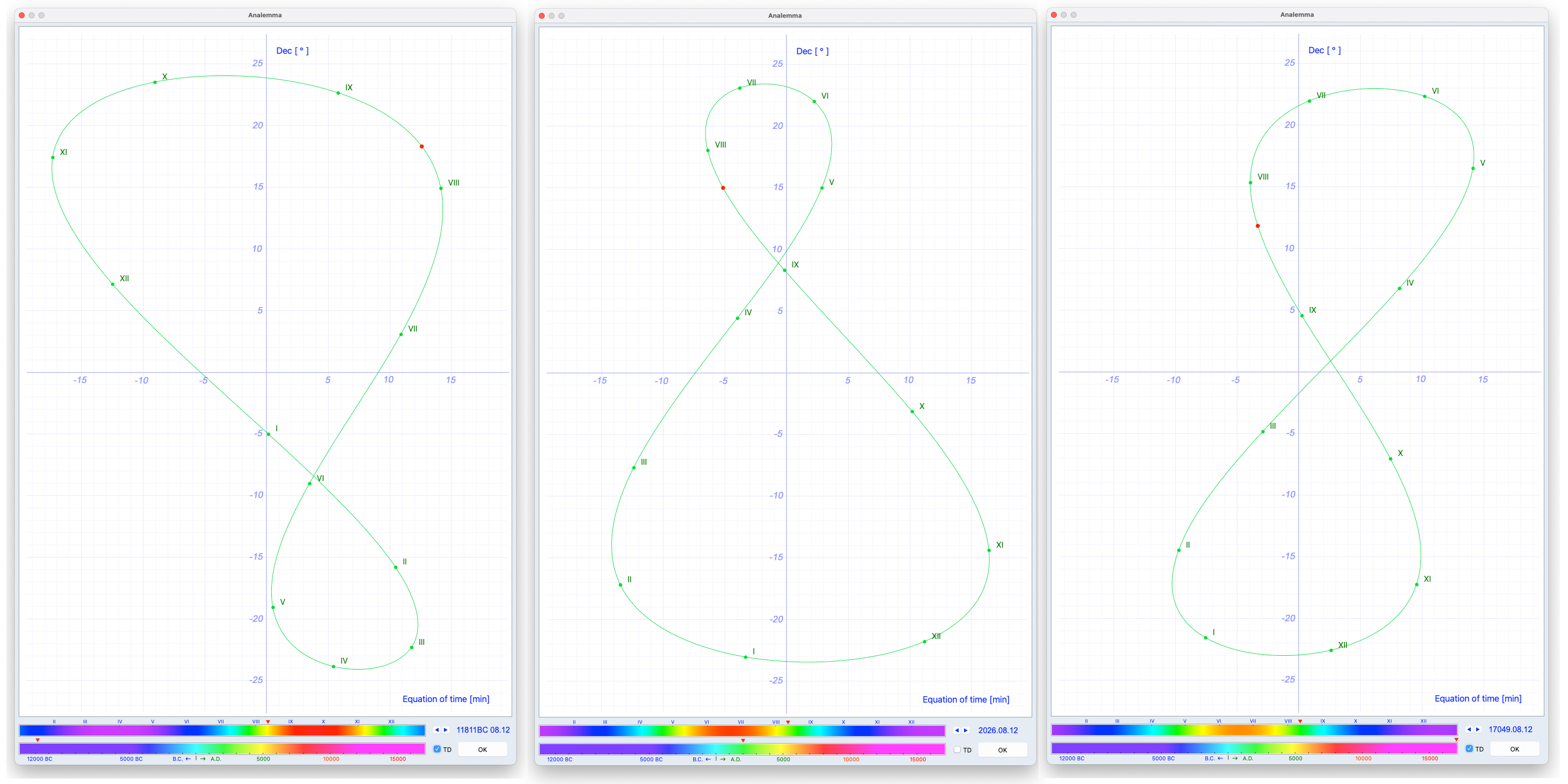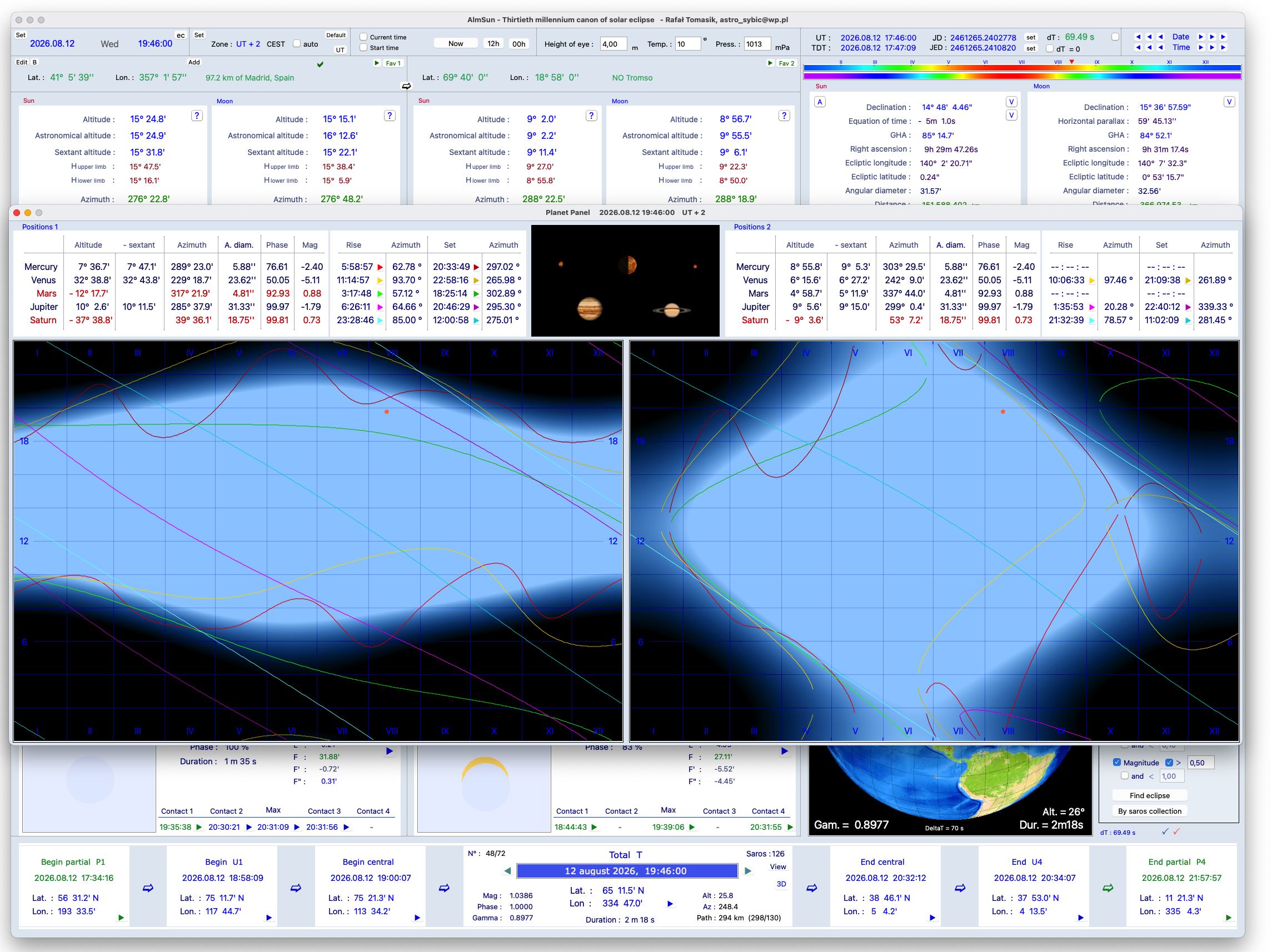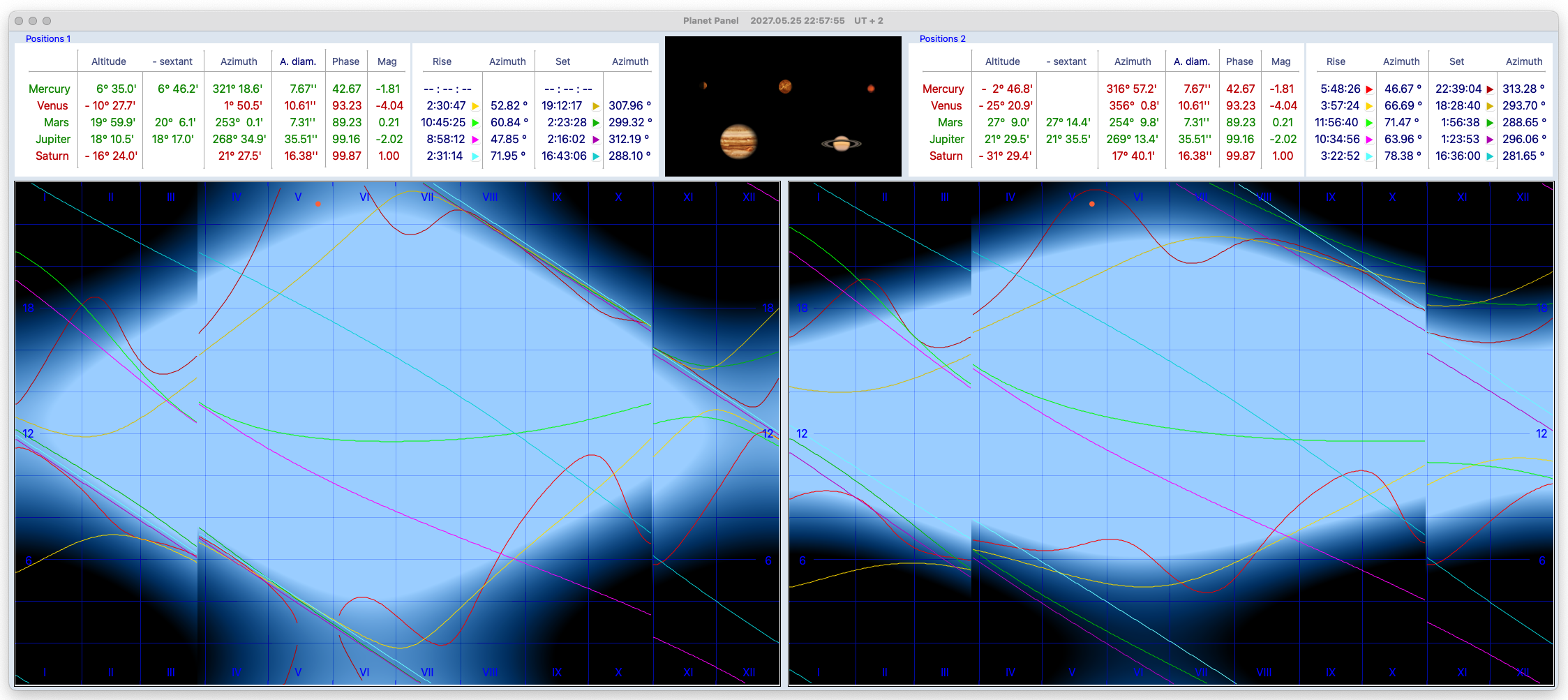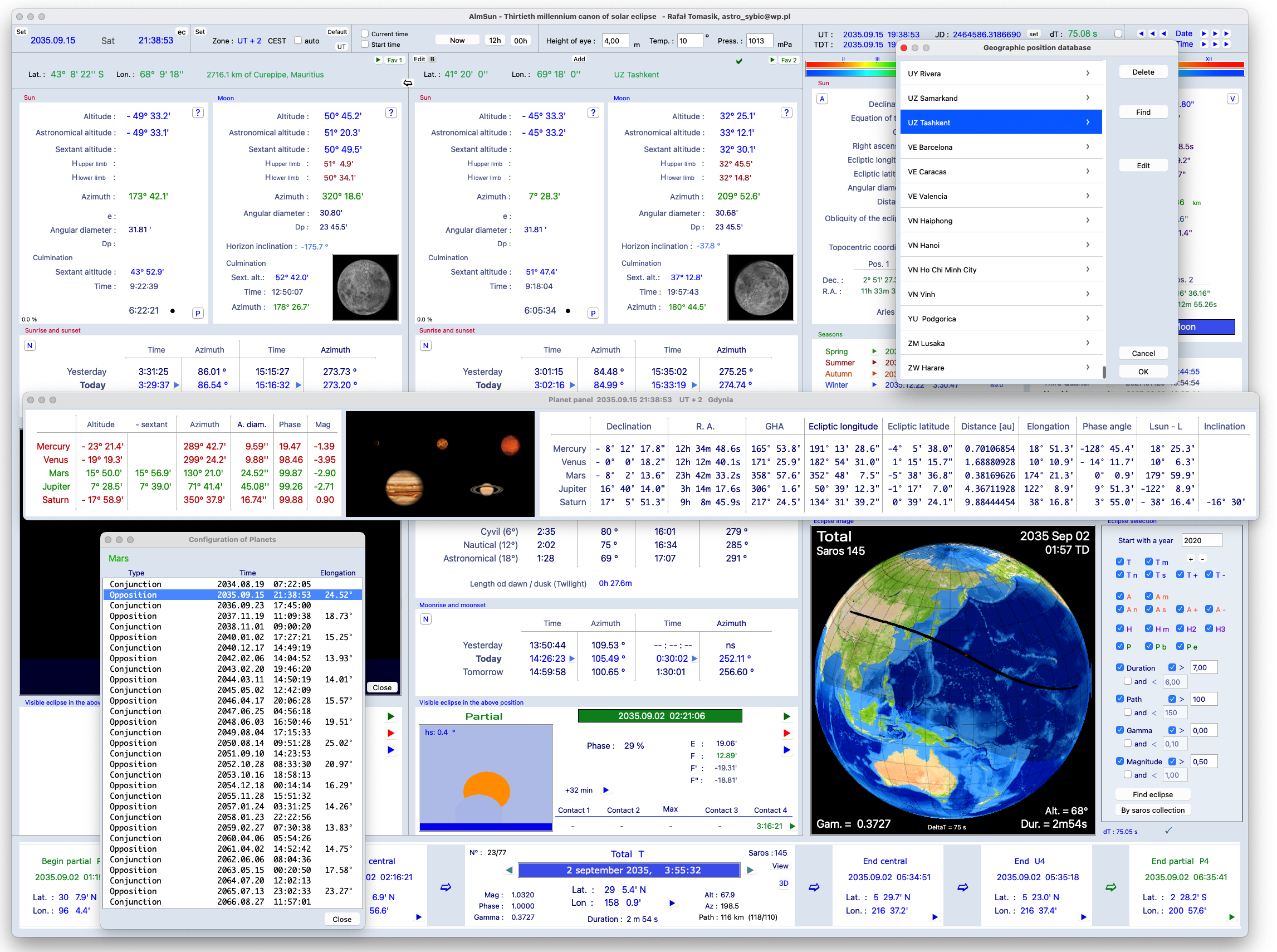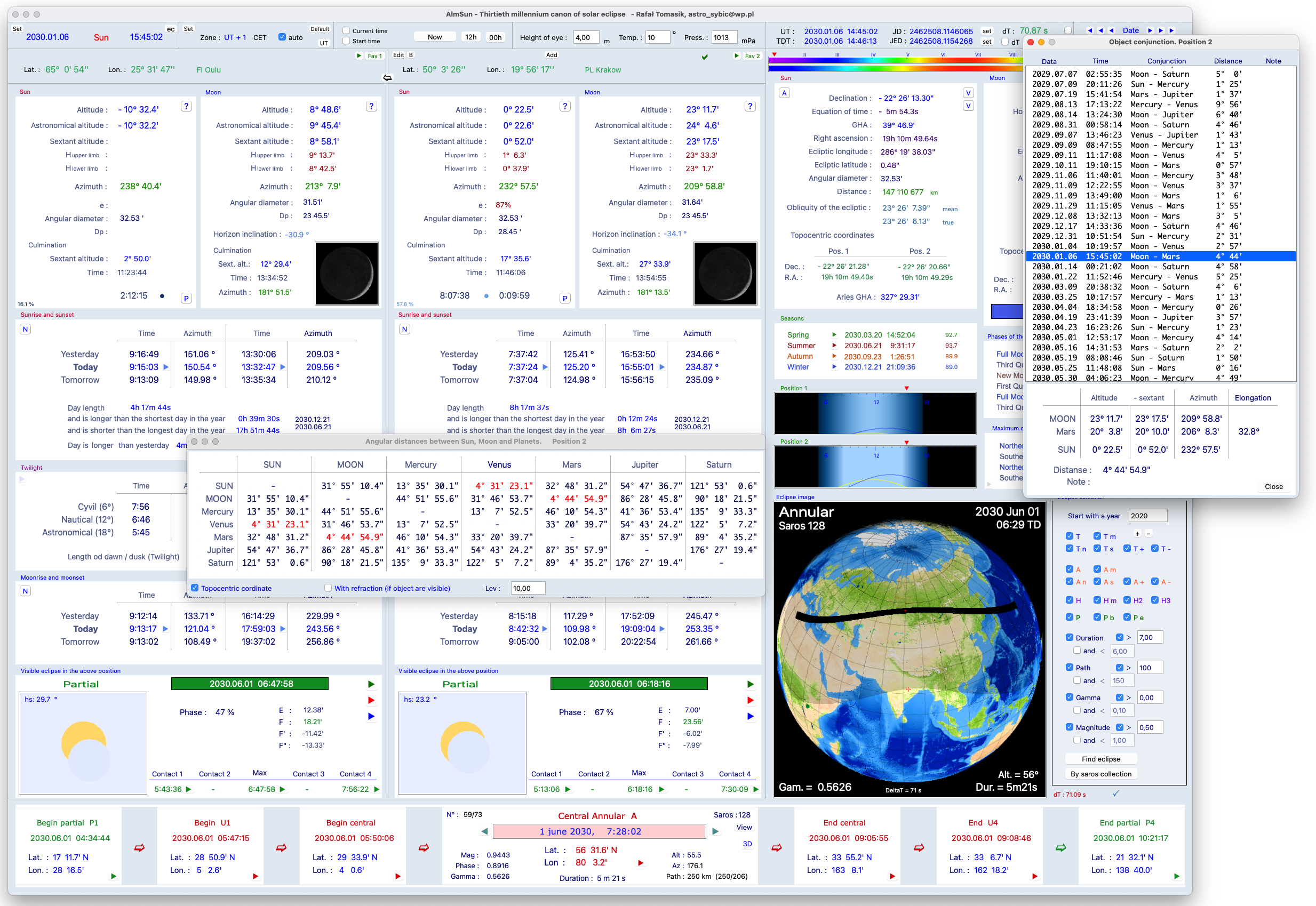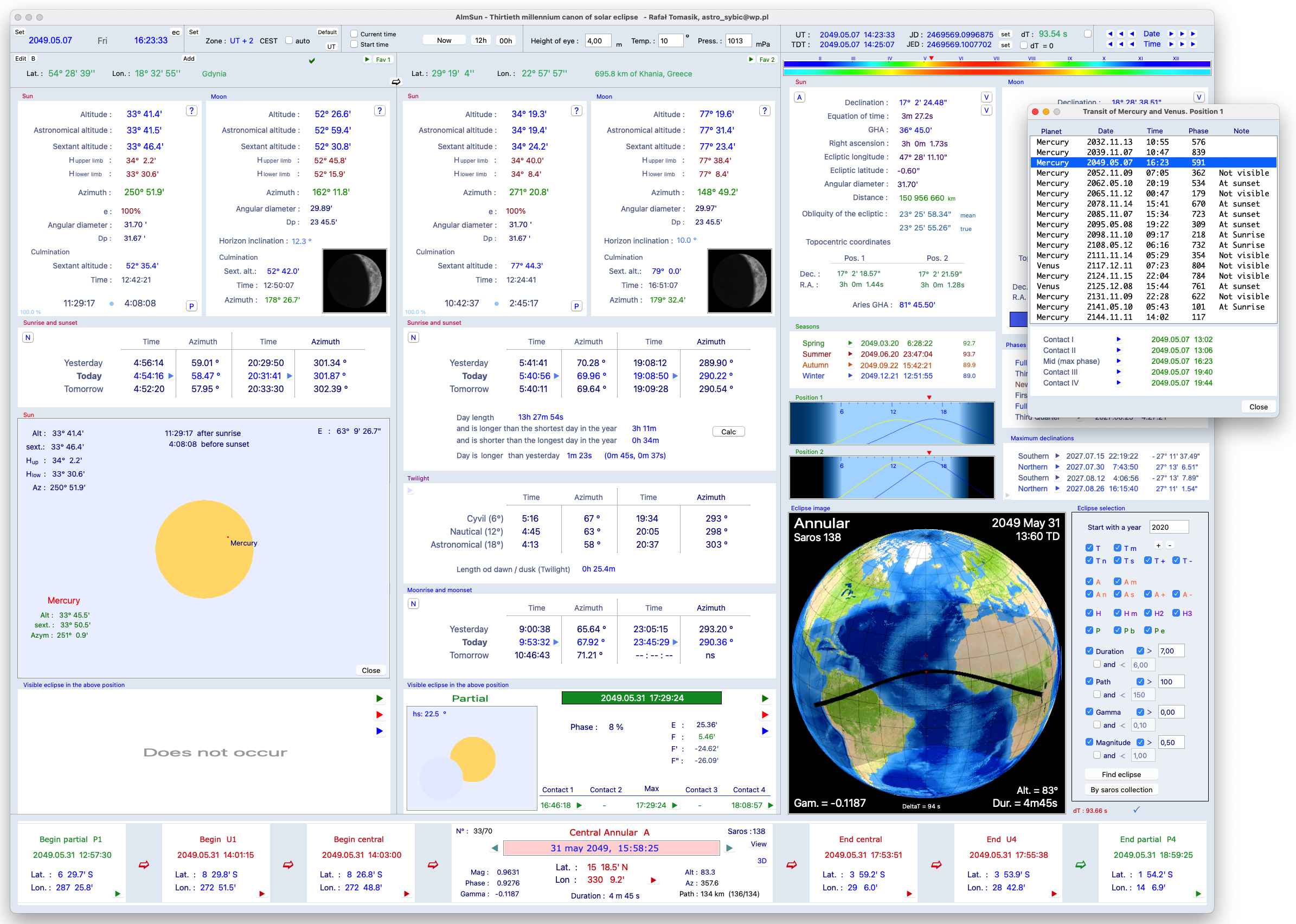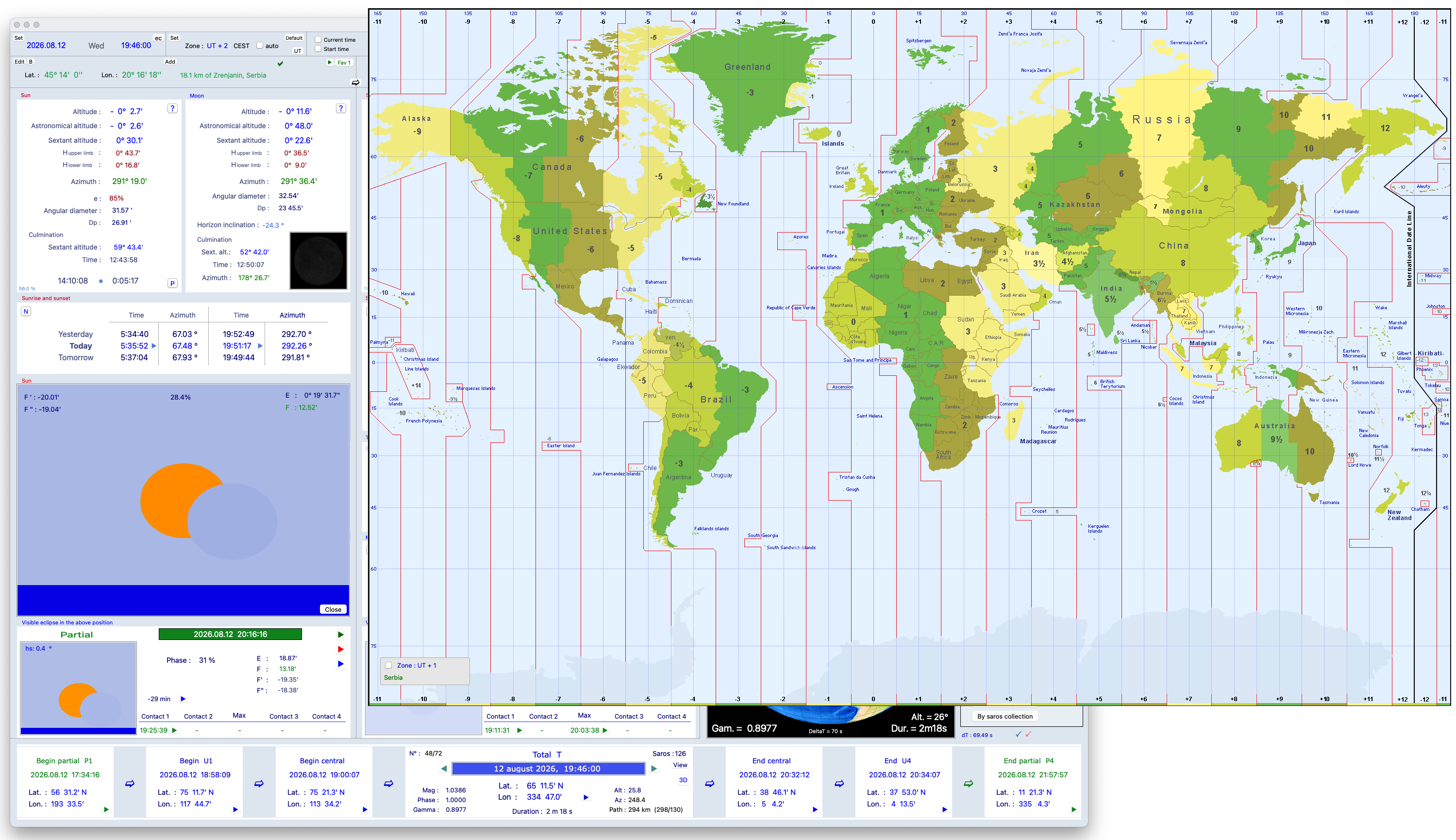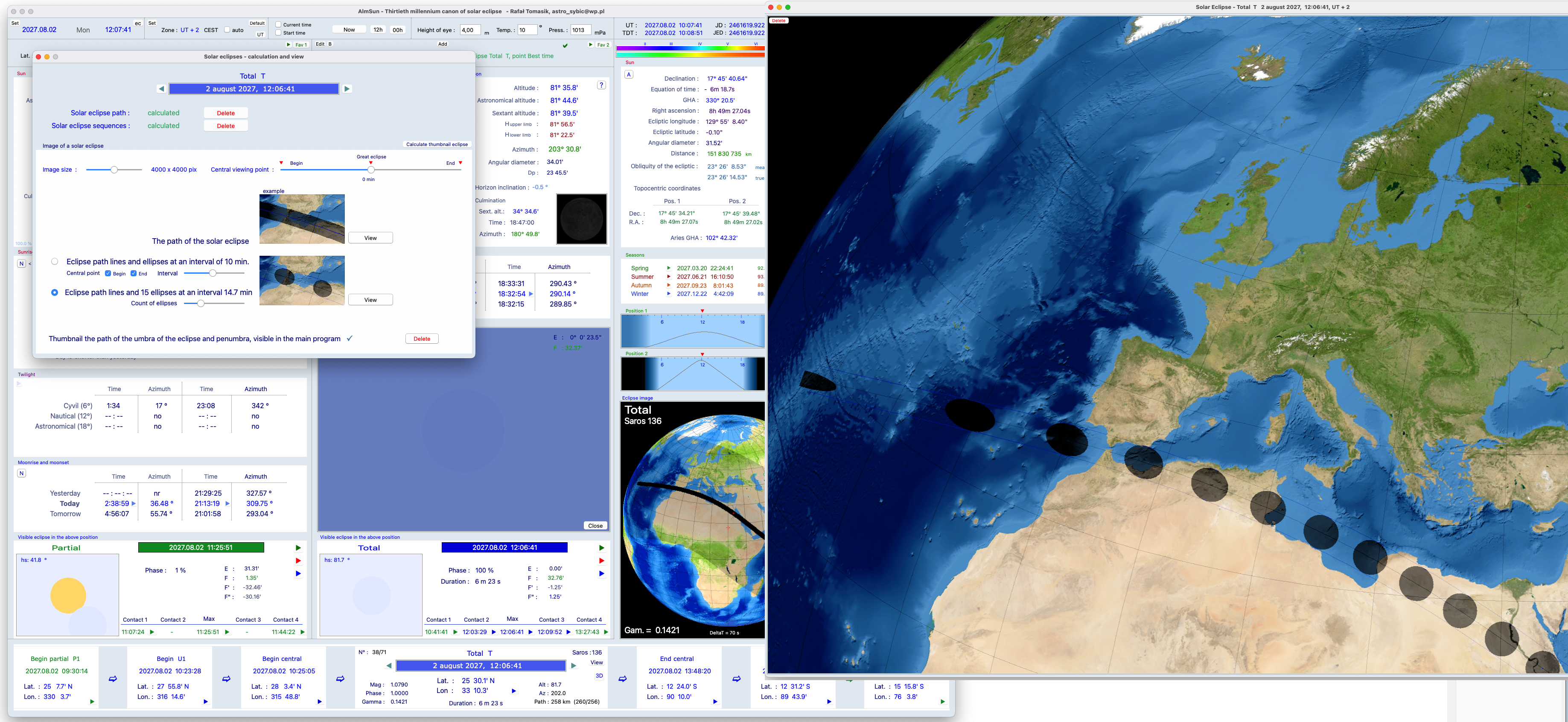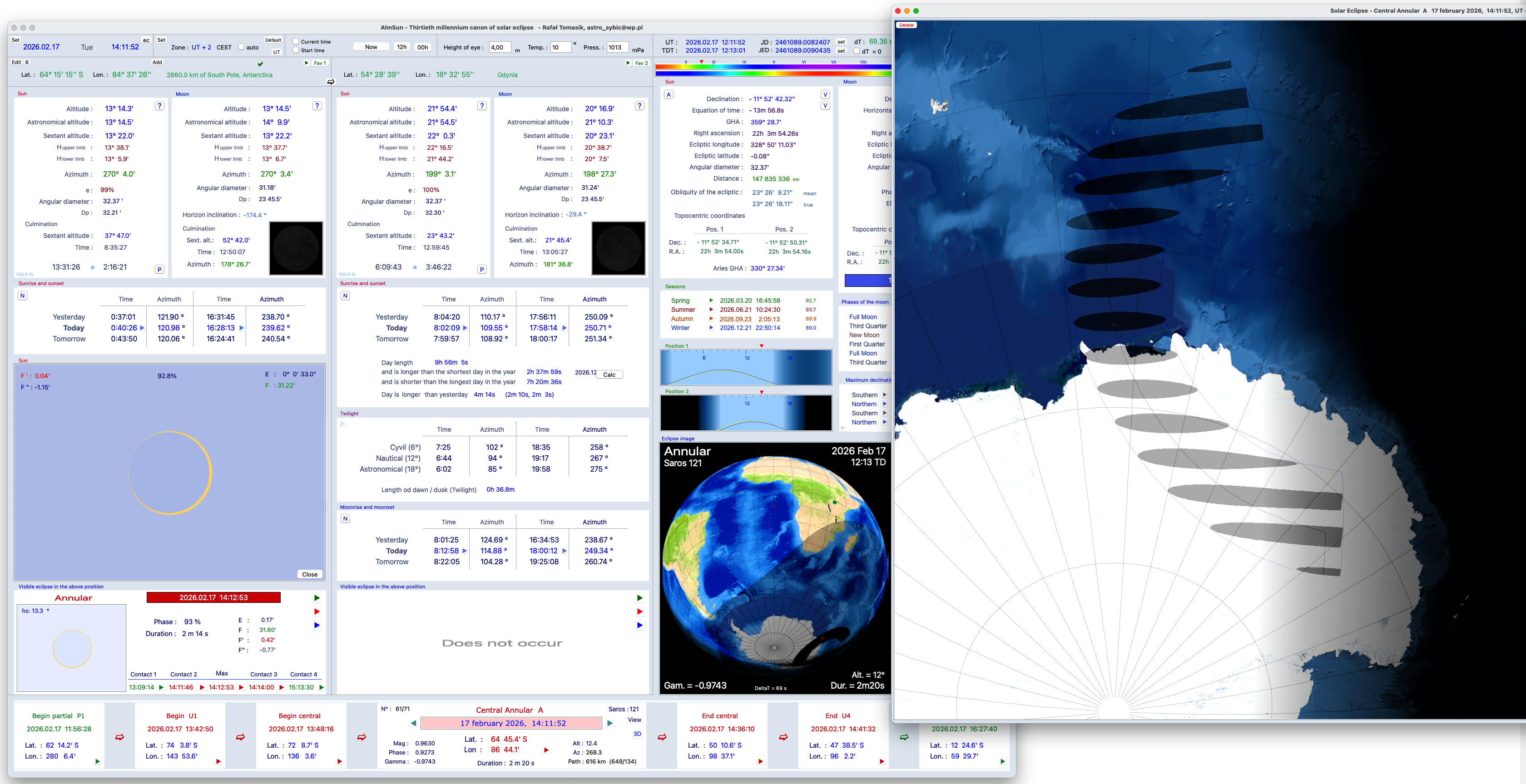
AlmSun pod MacOS to zupełnie inna aplikacja. Nie jest kopią, a uzupełnieniem programu pod Windows.
Programowany w środowisku XCode i w Delphi Community Edition 12
Ponieważ licencja na wspomniany program ma ograniczenie czasowe, a zyski z darowizn (dziękuje za każde wsparcie) na razie pokrywają tylko część kosztów domeny i hostingu, autor nie planuje zakupu pełnej licencji Delphi dającej możliwość dalszej rozbudowy AlmSun pod MacOS.
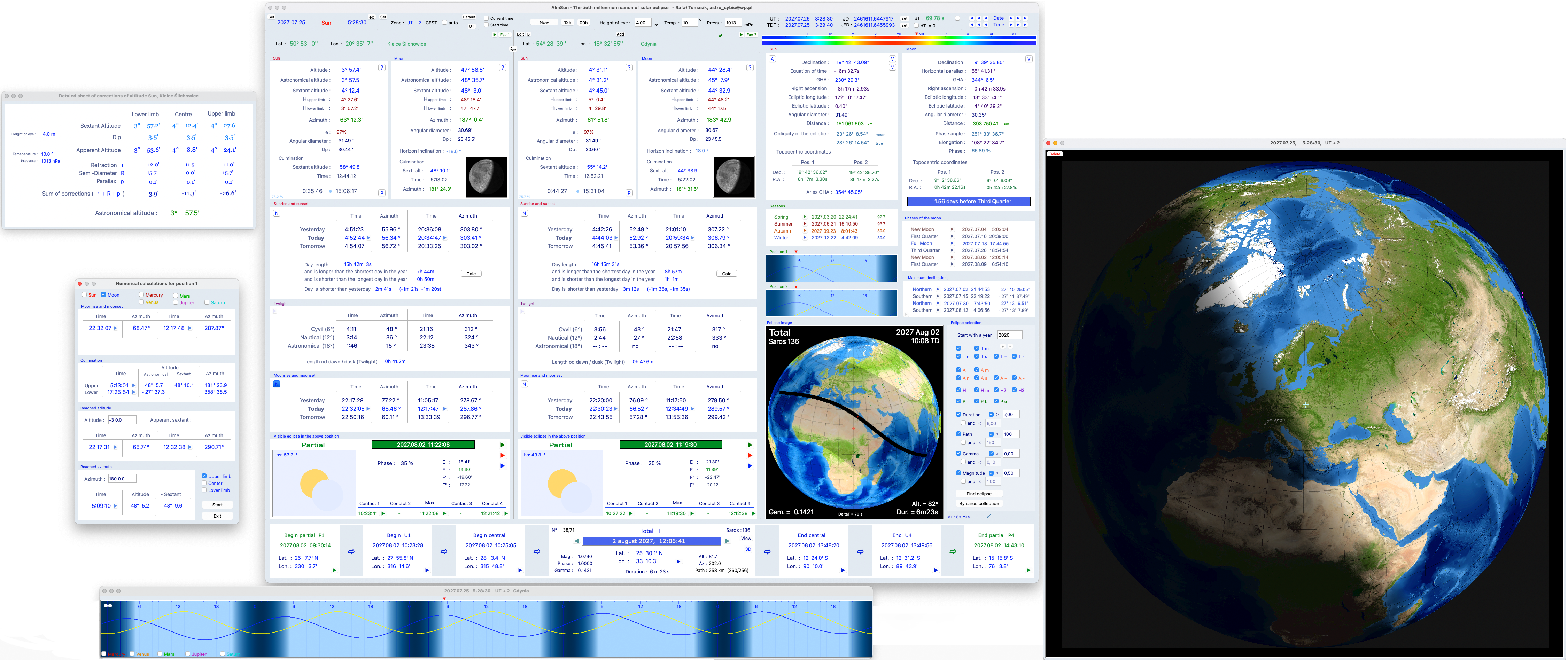
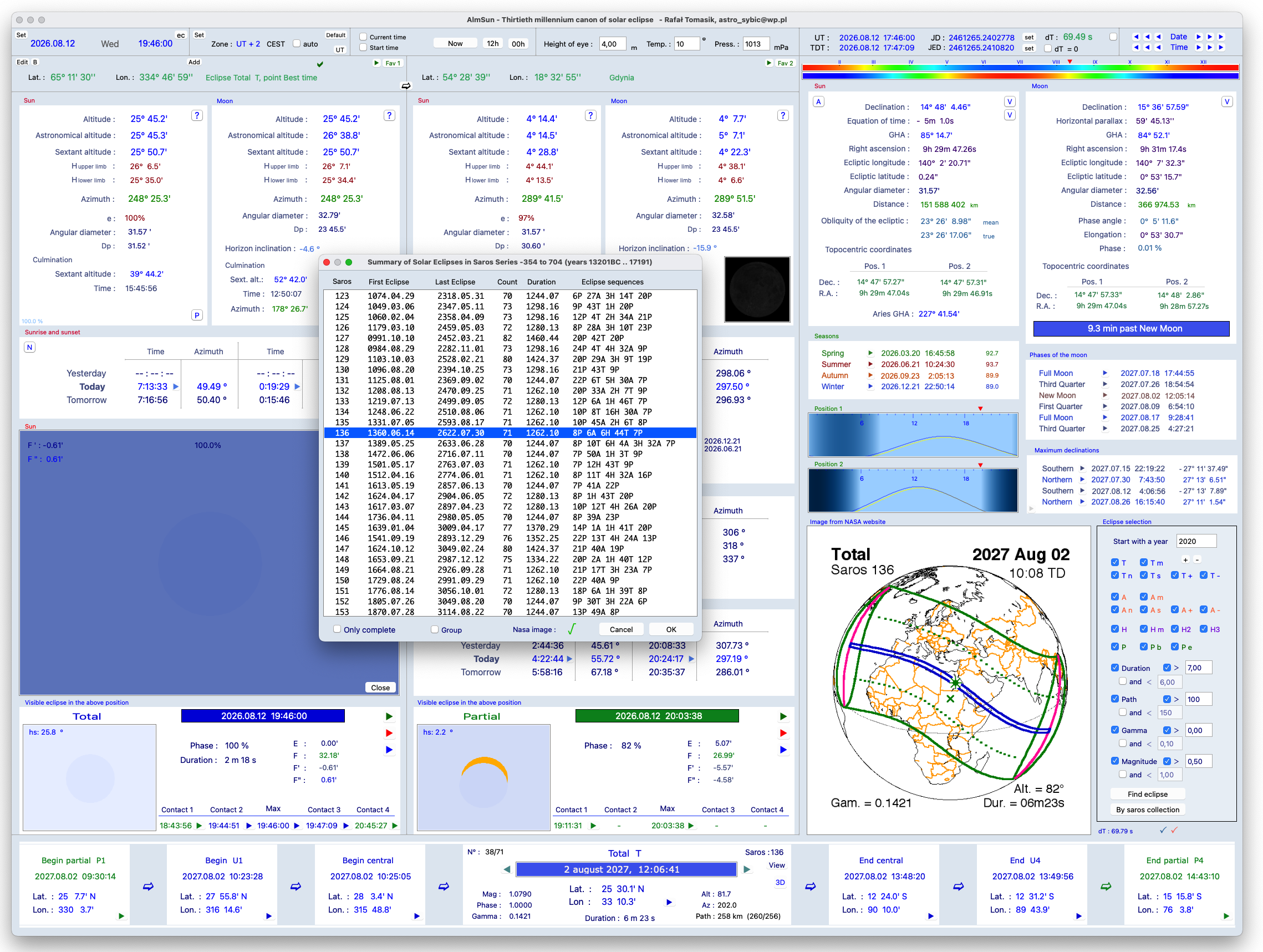
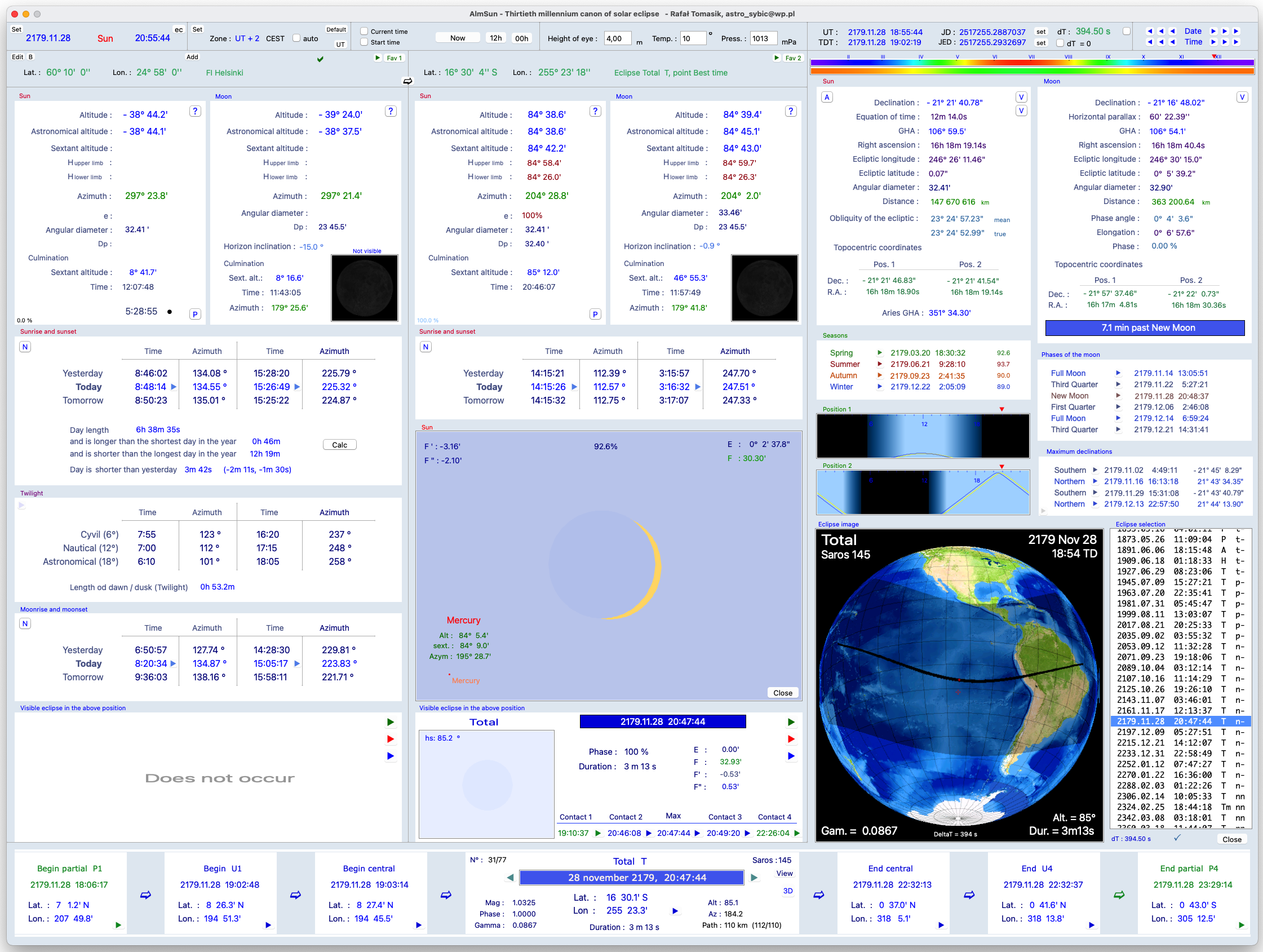
Podstawowe cechy AlmSun dla Mac:
Aplikacja jest darmowa do pobrania tu:
AlmSun for macOS - AlmSun.dmg Ver. : 1.11
Należy ją przeciągnąć do Aplikacji i uruchomić.
Ważna informacja dla użytkowników systemu macOS
Drogi użytkowniku! Ponieważ program Alm jest niezależnym projektem pasjonackim i nie jest dystrybuowany przez oficjalny sklep Apple App Store, system macOS po pobraniu go z internetu wyświetli fałszywy i drastyczny komunikat:
Aplikacja jest uszkodzona i nie można jej otworzyć
Program jest w 100% bezpieczny i sprawny. To system macOS celowo nakłada na niego tzw. „kwarantannę internetową”, ponieważ nie rozpoznaje autora.
Aby uruchomić program, musimy jednorazowo powiedzieć systemowi, że wiemy co robimy. Służy do tego jedna, całkowicie bezpieczna komenda, którą należy wkleić w systemowym programie Terminal (znajdziesz go w Spotlight naciskając Cmd + Spacja i wpisując Terminal):
xattr -cr /Applications/Alm.app
Co dokładnie robi ta komenda? (Bez obaw!)
xattr – to skrót od eXtended ATTRibutes (atrybuty rozszerzone). To bezpieczne narzędzie wbudowane w każdy system macOS, które służy do przeglądania i zmieniania "metadanych" (czyli niewidzialnych etykiet) przypisanych do plików.
-c – to polecenie clear (wyczyść). Nakazuje systemowi skasować wszystkie ukryte ostrzeżenia i blokady nałożone na dany plik.
-r – to polecenie recursive (rekurencyjnie). Oznacza, że komenda wyczyści nie tylko główną ikonę programu, ale też wszystkie pliki wewnątrz paczki aplikacji, dzięki czemu cały program ruszy bez problemów.
/Applications/Alm.app – to po prostu wskazanie systemowi, o który konkretnie program nam chodzi.
Podsumowując: Ta komenda nie modyfikuje Twojego systemu operacyjnego, nie zmienia ustawień bezpieczeństwa Maca, ani niczego nie usuwa. Jedyne co robi, to odkleja z programu Alm niewidzialną, systemową żółtą kartkę ostrzegawczą (com.apple.quarantine), którą macOS przykleił do niego podczas pobierania przez przeglądarkę internetową.
Po wklejeniu tej linijki i naciśnięciu Enter, zamknij Terminal. Program Alm uruchomi się od razu normalnie i już nigdy więcej nie zapyta o kwarantannę!
Przy pierwszym uruchomieniu program pobierze sobie brakujace komponenty do katalogu:
~/Library/Application Support/Alm
oraz efemerydy DE431. Efemerydy są niezbędne i zajmują ok. 3.4 GB
Jeśli i tu będzie problem, trzeba to zrobić manualnie: zakładając katalog Alm w ~/Library/Application Support/
Pobrać pakiet ApplicationSupport_Alm.zip
następnie, po rozpakowaniu całą zawarość wgrać do katalogu Alm.
Dwa pliki efemeryd DE431 wgrać do katalogu DE431.
http://almsun.com/de431/de431_part-1.bsp
http://almsun.com/de431/de431_part-2.bsp
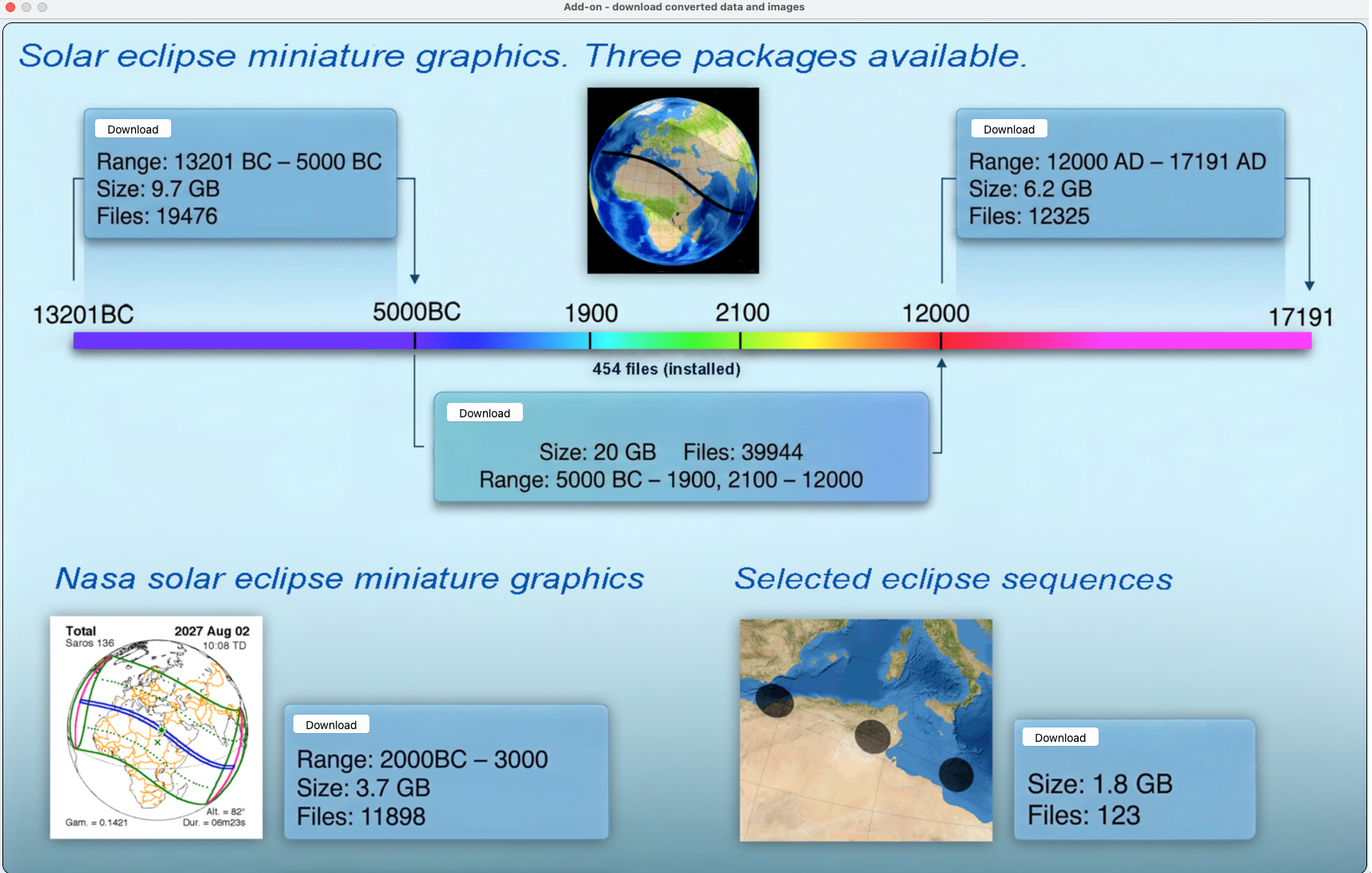
Polecam ściągnięcie już przelicznych grafik zaćmień Słońca. W programie dołączone są tylko obrazy z lat 1900-2100.
Bezpośrednio w programu, w trzech pakietach można ściagnąć: lata 5000 p.n.e. do 12000 n.e., 13201 p.n.e - 5001 p.n.e., oraz lata 12001 do 17191
Manualnie, poniższe pakiety należy rozpakować do katalogu ~/Library/Application Support/Alm/EclipseImage
http://almsun.com/install/EclipseImage_5000BC-12000AD.zip
http://almsun.com/install/EclipseImage_13201BC-5001BC.zip
http://almsun.com/install/EclipseImage_12001-17191.zip
Oczywiście wszystkie grafik można przeliczyć w programie hurtowo, dla zadanego przedziału czasowego.
Opcjonalnie, np. w celach porównawczych, można sobie pobrać grafiki zaćmień ze strony internetowej NASA.
Link do pobrania:
http://almsun.com/install/NasaCatalogImage.zip
Należy rozpakować i umieścić w katalogu "NasaCatalogImage". Pakiet zawiera obrazy z lat 2000 p.n.e. do 3000.
Dla pasjonatów - wybrane sekwencje zaćmień:
http://almsun.com/install/EclipseSequences.zip
Należy rozpakować i umieścić w katalogu "EclipseSequences"
Spodobał Ci się program? Jeśli tak, nie wahaj się wspomóc niewielką darowizną. Ucieszę się z każdej złotówki, bo muszę opłacić domenę i hosting.
Płatność: PayPal na konto - astro_sybic@wp.pl lub przelew na podane konto
Jeśli potrzebujesz klucza aktywacyjnego, wyślij mi e-maila: astro_sybic@wp.pl
AlmSun for MacOS is a completely different application. It is not a copy, but a complement to the Windows program.
Programmed in XCode and Delphi Community Edition 12
As the license for the aforementioned application is time-restricted and incoming donations (thank you for all your support) so far cover only a fraction of the domain and hosting expenses, the author has no plans to acquire a full Delphi license required for the further development of AlmSun on macOS.
Basic features of AlmSun for Mac:
The application is free. Download here:
AlmSun for macOS - AlmSun.dmg Ver. : 1.11
It should be dragged into the Applications folder and run.
Important Notice for macOS Users
Dear User,
Because Alm is an independent, hobbyist project and is not distributed through the official Apple App Store, macOS will display a dramatic (and false) warning when you first try to open it:
The application is damaged and can’t be opened. You should move it to the Trash.
The program is 100% safe and fully functional. This is simply a built-in macOS security feature putting a "web quarantine" on the file because it doesn’t recognize the developer.
To bypass this and run the app, you just need to tell macOS that you trust this software. You can do this easily and safely using a single command in the system Terminal app (to open Terminal, press Cmd + Space, type Terminal, and hit Enter).
Paste the following line into Terminal and press Enter:
xattr -cr /Applications/Alm.app
What exactly does this command do? (No need to worry!)
xattr – short for eXtended ATTRibutes. This is a standard, safe tool built into every Mac used to view and modify hidden metadata tags attached to files.
-c – stands for clear. It tells macOS to wipe away all hidden warnings and blockades attached to this specific file.
-r – stands for recursive. It ensures the command clears the warning not just from the main application icon, but also from all the supporting files packaged inside it, letting the whole app run smoothly.
/Applications/Alm.app – this simply tells the system exactly which application you want to target.
In short: This command does not modify your operating system, does not lower your Mac's overall security settings, and deletes absolutely nothing. The only thing it does is peel off the invisible "yellow caution tape" (com.apple.quarantine) that macOS slapped onto the Alm package when it was downloaded through your web browser. Once you paste the line and press Enter, you can close Terminal. Alm will open perfectly right away, and macOS will never bother you about this quarantine again!
Upon the first launch, the program will download the missing components to the
~/Library/Application Support/Alm directory, as well as the DE431 ephemerides.
These ephemerides are essential and require approximately 3.4 GB of disk space.
If there is a problem here, you have to do it manually: create an Alm directory in ~/Library/Application Support/
Download the ApplicationSupport_Alm.zip
Then, after unpacking, copy the entire contents to the Alm directory.
Copy the two DE431 ephemeris files to the DE431 directory.
http://almsun.com/de431/de431_part-1.bsp
http://almsun.com/de431/de431_part-2.bsp
I recommend downloading the already numerous solar eclipse graphics. The program only includes images from the years 1900-2100.
You can download three packages directly from the program: 5000 B.C. to 12000 AD, 13201 BCE - 5001 BCE, and the years 12001 to 17191
Manually, the following packages should be unpacked to the ~/Library/Application Support/Alm/EclipseImage directory:
http://almsun.com/install/EclipseImage_5000BC-12000AD.zip
http://almsun.com/install/EclipseImage_13201BC-5001BC.zip
http://almsun.com/install/EclipseImage_12001-17191.zip
Of course, all graphics can be recalculated in the program in bulk, for a given time period.
Optionally, e.g. for comparison purposes, you can download a graphic of the eclipse from the NASA website.
Download link:
http://almsun.com/install/NasaCatalogImage.zip
It must be unpacked and placed in a directory "NasaCatalogImage". The package includes paintings from 2000 BC to 3000.
For enthusiasts - selected eclipse sequences:
http://almsun.com/install/EclipseSequences.zip
It must be unpacked and placed in a directory "EclipseSequences"
If you enjoy using AlmSun, Don't hesitate to help the developer with a small donation. I'm happy even with one dollar, because I have to pay for the domain and hosting.
Payment: PayPal to - astro_sybic@wp.pl
If you need an activation key, please send me an e-mail: astro_sybic@wp.pl